

Meesho

Documentation

Meesho
TL;DR
- The Chrome extension connects your Meesho supplier account; every linked account gets its own tab.
- Fetch Orders loads your pending Meesho orders, filed by Meesho's dispatch-by date.
- Process Orders accepts the ticked orders on Meesho and downloads their labels.
- Create Batch combines processed orders into one PDF, sorted by SKU, by SKU order count or by courier.
- Each batch card gives you the file, a picklist and an optional SKU-wise zip.
The Meesho page takes your pending Meesho orders, accepts them on Meesho, pulls their labels and gives you one sorted PDF to print. It is for any seller with a Meesho supplier account.
Where to find it
Marketplaces → Meesho in the sidebar of the dashboard at https://app.happysellers.in.
Before you start
- The HappySellers Chrome extension is installed and you are signed in to it.
- You are signed in to supplier.meesho.com in the same Chrome profile. The account then appears on the Meesho page by itself.
- Your Meesho account has an active plan or add-on credits. The plan for the open account is shown under the account tabs. See Pricing and credits.
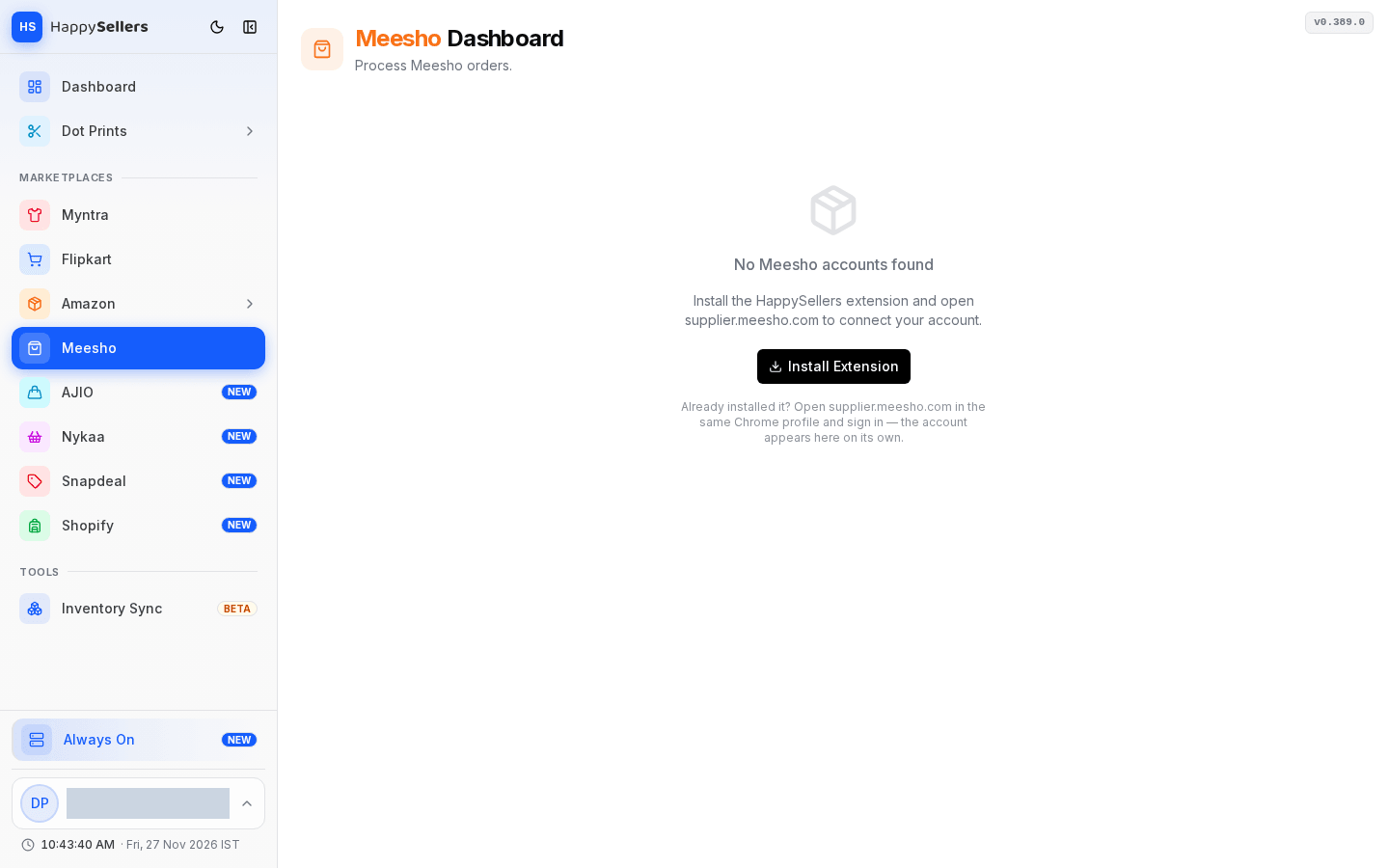
If no Meesho account is linked yet, the page shows No Meesho accounts found and an Install Extension button that walks you through the setup.
Processing your orders
- Open the tab of the Meesho account you want to work on.
- Click Fetch Orders. Your pending orders load into the table.
- Pick a date with the day buttons on the right, or press the highlighted date again to see every day.
- Tick the pending orders you want. The header tick opens Select all with Pending orders and Processed orders.
- Click Process Orders. A progress bar shows each batch of the run, and a message tells you when the orders are processed.
- Tick the processed orders and click Create Batch.
- Choose your options in the popup (see below) and click Create Batch again.
- When the batch is ready, click File on its card to get the PDF, and Picklist for the pick sheet.
Options
These are in the Create Batch popup.
| Option | What it does |
|---|---|
| Batch Type | Shipping labels only, Invoices only, or Shipping & invoices both. Your last pick is remembered for the account. |
| No cropping | Keeps each Meesho page whole, label and invoice together. The batch type is not used. Every new batch starts with cropping on. |
| Batch Tag (optional) | Your own name for the batch, for example the packer's name. Shown on the batch card. |
| Sort Orders By | Sort by SKU, SKU order count (SKUs with the fewest orders first), or Sort by Courier (courier A to Z, then SKU). |
| Move Multi Orders | Puts orders with more than one piece at the end (Bottom) or the start (Top) of the batch. |
| Ask buyer for a rating | Prints a short "please rate us" box on every label and invoice page. Use the default message or write your own, up to 200 characters, in English letters, numbers and common punctuation. |
On each batch card you can also:
- Add tag or edit the tag.
- Generate SKU Zip on a finished batch, then Download SKU Zip for one PDF per SKU.
- Recreate the batch with different options.
Good to know
- Processing accepts the orders on Meesho. This cannot be undone, so tick only what you mean to ship.
- Credits. Fetching orders is free. Every sub-order you process counts against your Meesho plan or add-on credits. With no active plan, processing is refused and the page says so.
- Accepted on Meesho — label pending. If Meesho accepted an order but its label did not arrive (for example, the browser was closed mid-run), it shows in this box. HappySellers fetches the label from Ready to Ship by itself, or click Download label to get it now. Nothing is accepted or charged again.
- Extension not connected for this account. No Chrome window is signed in to this Meesho account right now. Open supplier.meesho.com as that account, or click Reconnect.
- Removed an account in the extension? It is disconnected here too. Its batches stay on the page; connect it again in the extension to fetch new orders.
- Day buttons. Orders due today or later sit under today. Overdue orders stay on their own day, so late parcels are easy to spot. Changing the day clears your ticks.
- The Batches list shows the last 4 days.
Related
- Meesho product overview
- Dot Prints — crop Meesho labels you download yourself
- Pricing and credits
- Support
FAQ
Can I process more than one Meesho account?
Yes. Every linked Meesho account gets its own tab, and a run on one tab carries on while you switch to another.
Can I sort Meesho labels by courier?
Yes. Pick Sort by Courier in the Create Batch popup. Labels are grouped courier by courier, A to Z, and sorted by SKU inside each courier.
Can I print the Meesho page without cropping?
Yes. Tick No cropping in the Create Batch popup and each page prints whole, label and invoice together.
Why is Fetch Orders greyed out?
The extension is not connected for this account. Open supplier.meesho.com in Chrome signed in as that account, with the HappySellers extension active.
Does fetching orders use credits?
No. Fetching is free. Only processing orders counts against your plan or add-on credits.