

Amazon Seller Central

Documentation

Amazon Seller Central
TL;DR
- The Seller Central screen is for Amazon India orders on sellercentral.amazon.in.
- Fetch Orders loads your unshipped orders, filed by Amazon's ship-by date.
- Process Orders books the Easy Ship pickup for each order and collects its label and invoice.
- You choose the box and weight: Amazon's suggestion, one common box, or a box per order.
- Create Batch combines processed orders into one PDF of labels, invoices or both.
The Amazon Seller Central screen books Easy Ship pickups for your Seller Central orders, collects their labels and invoices from Amazon, and gives you one sorted PDF to print. It is for sellers who sell on Amazon India through Seller Central and ship with Easy Ship.
Where to find it
In the sidebar of the dashboard at https://app.happysellers.in, open Marketplaces → Amazon → Seller Central (with the India flag).
Before you start
- The HappySellers Chrome extension is installed from the Chrome Web Store. Keep it up to date: choosing your own box needs a recent version, and the page tells you if yours is too old. This screen works through the extension, so use it in Chrome on a computer.
- You are signed in to sellercentral.amazon.in in the same Chrome. Your account then shows up on the page by itself, and the badge beside it reads Extension Online.
- Your account has an active plan or add-on credits. The plan for the open account is shown under the account switcher. See Pricing and credits.
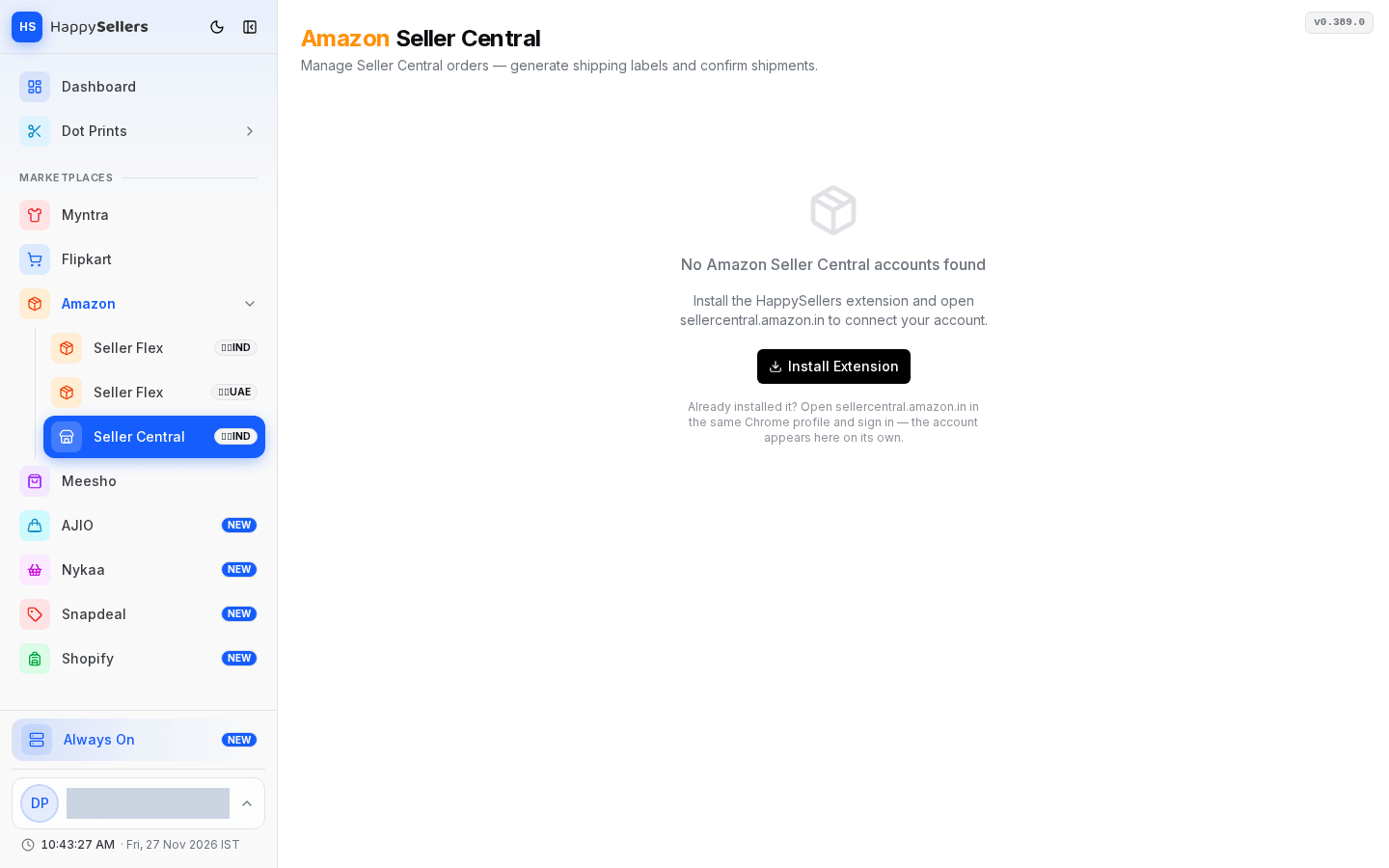
If no account is linked yet, the page shows No Amazon Seller Central accounts found and an Install Extension button that walks you through the setup. If the extension is online but not linked, click Open Seller Central.
Processing your orders
- Pick your account in the account switcher at the top.
- Click Fetch Orders. Your unshipped orders load into the table. Orders with the same SKU, quantity, type, ship-by day and Prime mark share one row.
- Use EasyShip / SelfShip and All / Unprocessed to narrow the list, and the day buttons to pick a ship-by date.
- Tick the pending orders you want. The header tick opens Select all of one status with Pending and Processed.
- Click Process Orders. The Process Orders popup opens.
- Choose the Box Type (see below). Tick Print product name on label if you want it. Then click Start Processing.
- The button shows the progress, for example "Processing 3/10". You can click Stop at any time.
- At the end of the run, HappySellers collects the labels and invoices from Amazon. The orders read Processed.
- Tick the processed orders and click Create Batch.
- Choose your batch options in the popup and click Create Batch again.
- When the batch is ready, click File on its card to get the PDF. Click Picklist for the pick sheet.
With an up-to-date extension, Easy Ship orders are booked in groups of up to ten in one go, the way Seller Central's own scheduling page does it. Each order is still charged and answered on its own.
Choosing the box
Every Easy Ship pickup needs a box and a weight. You can set them in three places:
- Default box (in the bar above the table) is used for every pickup on this account, unless an order has its own. Pick Amazon suggested size, a saved box (click Load my Amazon boxes), or Custom L × W × H (cm), and a weight, then click Save default.
- Box (beside Process Orders, or in the Box column of a row) sets the box for the selected orders only. Use account default puts them back.
- The Box Type in the Process Orders popup decides what this run uses.
Options
These are in the Process Orders popup. Your box type is remembered for each account.
| Option | What it does |
|---|---|
| Amazon Suggested | Amazon's own suggested box size and weight for every order. Your default box is not used for this run. |
| Common | One box and weight for every Easy Ship order, prefilled with your default box. The popup warns you about orders Amazon would not take it for. |
| Per Order | One row per Easy Ship order. Pick a box (Amazon suggested, one of your saved Seller Central boxes, or a custom size) and a weight for each. Apply to all and Apply to rows with this SKU copy a row. |
| Use Amazon min. box & weight | In Per Order, sets every order to the smallest box and weight Amazon takes for it, in one click. You can still change any row. |
| Remember these boxes for these SKUs | In Per Order, saves the boxes you picked for next time. Saved boxes and "Amazon suggested" only; a typed size or weight is never remembered. |
| Print product name on label | Prints Amazon's product title above the SKU on the label when you create the batch. Off until you turn it on, then remembered. |
These are in the Create Batch popup.
| Option | What it does |
|---|---|
| Batch Type | Shipping labels, Invoices, or Labels & invoices. |
| Sort Orders By | By SKU (orders of the same product print together) or By Order (order sequence, no grouping). |
| Move Multi Orders | Puts orders with more than one piece at the Bottom of the batch or the Top of the batch. |
| Serial number on invoice | Shown with Labels & invoices. Each invoice prints the same serial number as its label, at the bottom, so you can match the two in the pile. Off unless you tick it. |
| Batch Tag (optional) | Your own name for the batch, for example the packer's name or shift. |
On each batch card you can also:
- Add tag or edit the tag.
- Generate SKU Zip on a finished batch, then Download SKU Zip.
- Recreate the batch from the same orders, for example after a printer jam. It is not charged again.
Good to know
- Credits. HappySellers checks your plan before a run starts, counting orders, not items. An order with three items is one order and one label. If there are not enough orders left, you see Cannot Process Orders with an Activate a Plan button. Creating or recreating a batch is never charged.
- Refused orders. An order Amazon clearly refuses gets its charge back. If Amazon would not take the box you chose, the run tells you at the end which orders were not booked.
- Awaiting label. If a pickup may have been booked but Amazon has not made its label yet, the order reads Awaiting label. Process it again to get the label. It is not booked or charged twice.
- Self Ship orders. These are listed, but HappySellers cannot confirm Self Ship orders yet. Confirm them in Seller Central (Manage Orders → Confirm shipment). They are not marked shipped and not charged.
- When a run stops. A run stops after 5 orders fail one after another, after 45 minutes, or when your Seller Central session expires. The orders not reached stay pending, so select them and run again.
- One run per account. If a run is already going for the account in another tab or on another computer, the page asks you to wait for it to finish.
- Same status. Pending orders are processed and processed orders are batched. If you select both, the page asks you to select orders of the same status.
- Batched orders leave the list. An order in a batch no longer shows in the table. Use Recreate on its batch card to print it again.
- Days shown. The day buttons are today and the three days before it, plus any later ship-by day that has orders. The Batches section shows the last 4 days.
Related
FAQ
Does HappySellers schedule my Easy Ship pickups?
Yes. Process Orders books the Easy Ship pickup for each selected order and then collects its label and invoice from Amazon.
Can I use Amazon's minimum box and weight?
Yes. Choose Per Order in the Process Orders popup and click Use Amazon min. box & weight to fill every row at once.
How do I print the product name on the label?
Tick Print product name on label in the Process Orders popup. Amazon's product title is printed above the SKU when you create the batch.
Can I print the invoice with the same serial number as the label?
Yes. Pick Labels & invoices and tick Serial number on invoice in the Create Batch popup.
Can HappySellers ship my Self Ship orders?
Not yet. Confirm Self Ship orders in Seller Central under Manage Orders, then Confirm shipment. They are not charged.
Is a multi-item order charged more than once?
No. An order is charged once however many items it has, and it gets one label.