

Amazon SellerFlex

Documentation

Amazon SellerFlex
TL;DR
- There are two SellerFlex screens: one for India (sellerflex.amazon.in) and one for UAE (sellerflex.amazon.ae).
- Fetch Pick Tasks lists the active pick tasks for the warehouse you pick.
- Process Selected saves each order's packing slip and shipping label and packs the order on SellerFlex.
- Create Batch combines processed pick tasks into one PDF of labels, invoices or both.
- Labels carry the SKU and quantity unless you turn that off.
The Amazon SellerFlex screens take your active SellerFlex pick tasks, process every order in them and give you one sorted PDF to print. They are for sellers who ship through Amazon SellerFlex in India or in the UAE.
Where to find it
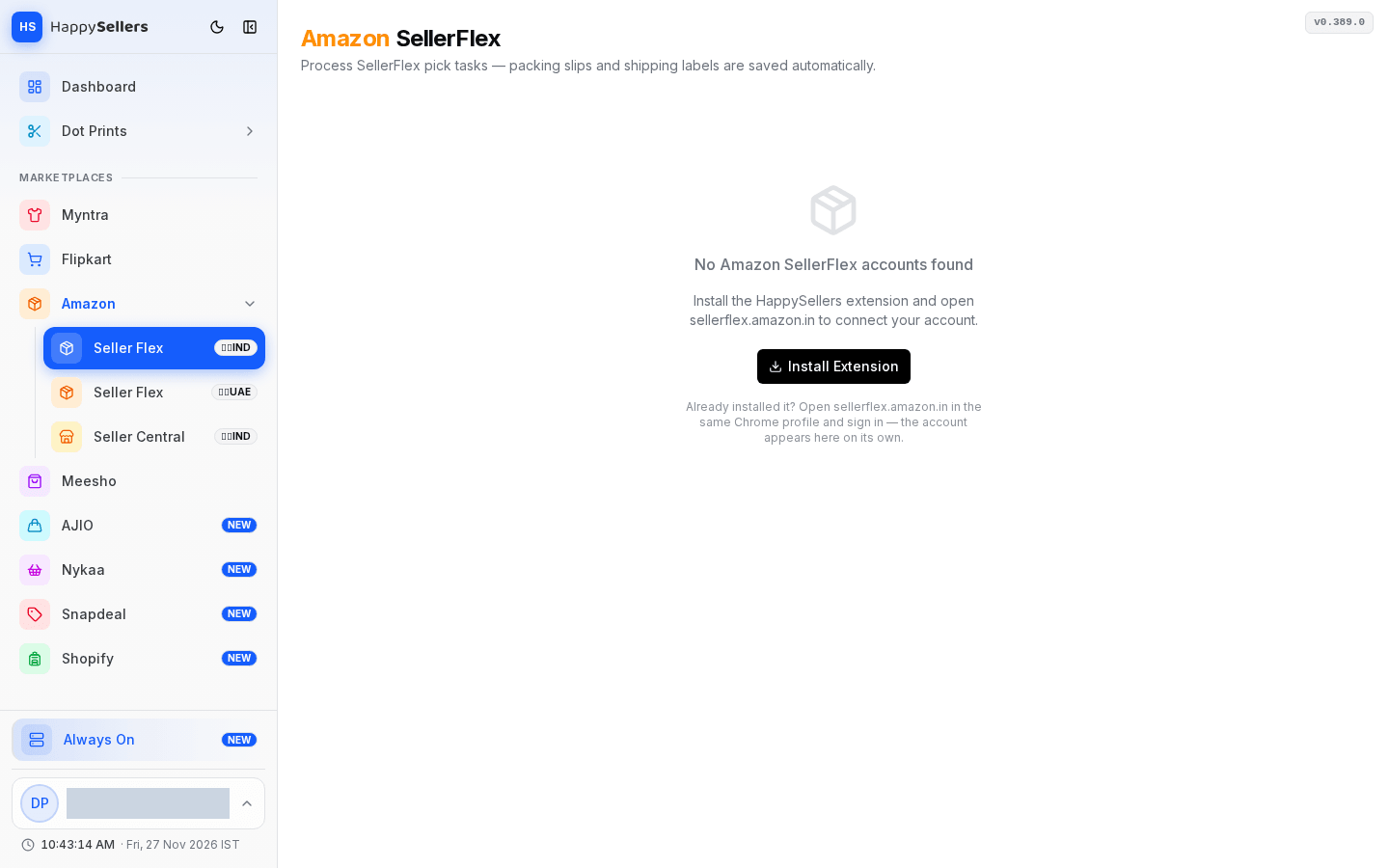
In the sidebar of the dashboard at https://app.happysellers.in, open Marketplaces → Amazon. Then pick:
- Seller Flex with the India flag, for sellerflex.amazon.in.
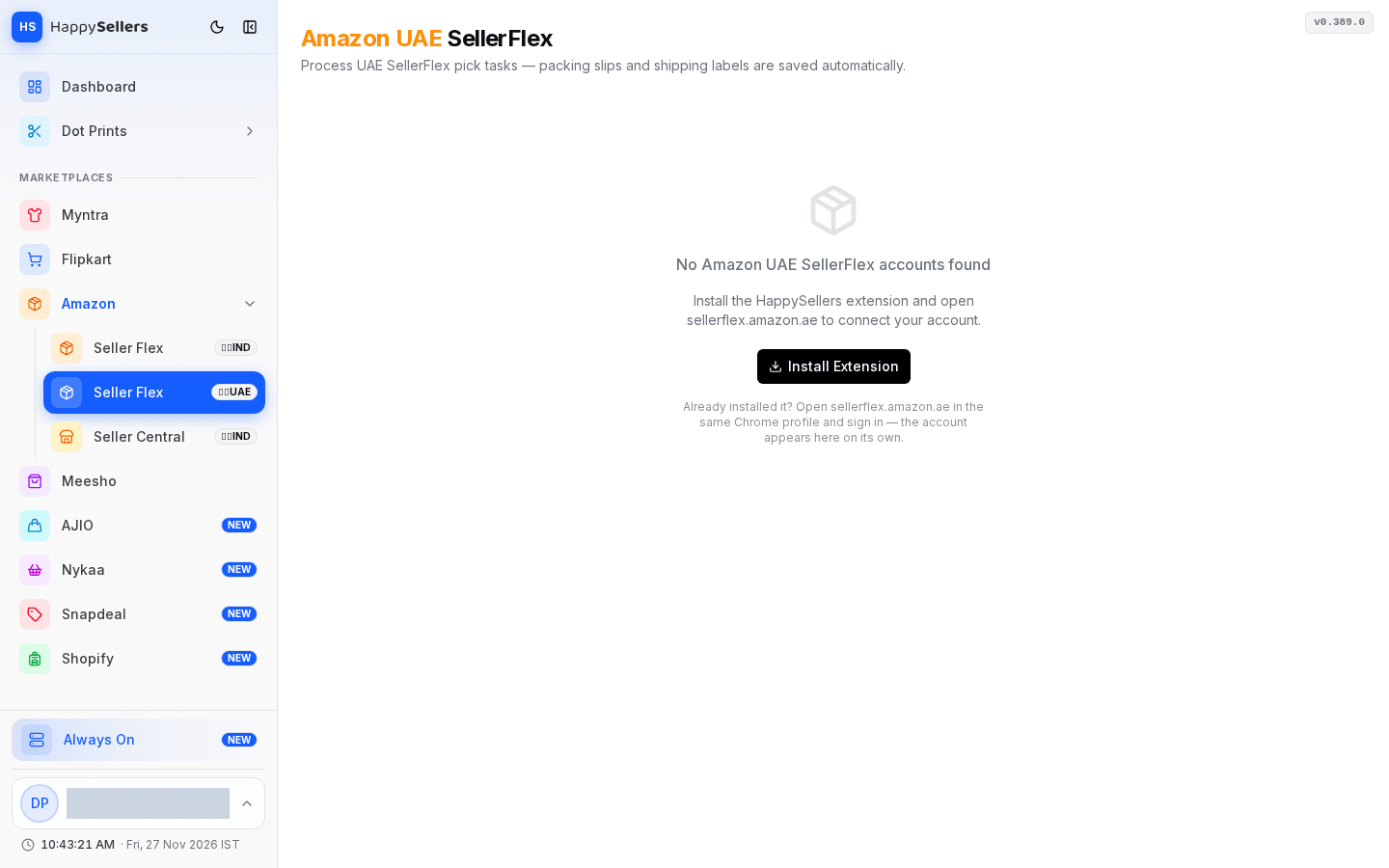
- Seller Flex with the UAE flag, for sellerflex.amazon.ae.
Before you start
- The HappySellers Chrome extension is installed from the Chrome Web Store. These screens work through the extension, so use them in Chrome on a computer.
- You are signed in to SellerFlex (sellerflex.amazon.in or sellerflex.amazon.ae) in the same Chrome. Your account then shows up on the page by itself.
- Your pick tasks are already created in SellerFlex. HappySellers lists the pick tasks that are active there.
- Your account has an active plan or add-on credits. The plan for the open account is shown under the account switcher. See Pricing and credits.
If no account is linked yet, the page shows No Amazon SellerFlex accounts found and an Install Extension button that walks you through the setup. If the extension is online but not linked to the account on screen, click Connect.
Processing your pick tasks
- Pick your account in the account switcher at the top.
- Pick your warehouse from the warehouse menu.
- Click Fetch Pick Tasks. Your active pick tasks load into the table.
- Pick a date with the day buttons, or press the highlighted date again to see every day.
- Tick the pick tasks you want, or use the tick box in the header to select them all.
- Click Process Selected. The Process Orders popup opens.
- Choose your box type and other settings (see below), then click Start Processing.
- Watch the progress bar on each pick task. When it is done, its status reads Processed.
- Tick the processed pick tasks and click Create Batch.
- Choose your batch options in the popup and click Create Batch again.
- When the batch is ready, click File on its card to get the PDF. Click Picklist for the pick sheet.
For every order, HappySellers saves the packing slip (your invoice) and the shipping label first. Only when both are saved does it pack the order on SellerFlex.
If you chose Per Order, a Select Box Type per Order popup opens for each pick task once its orders are read. Pick a box for each order and click Start Processing.
Options
These are in the Process Orders popup. They are saved for each account.
| Option | What it does |
|---|---|
| Box Type: Suggested | Uses the box Amazon suggests for each order. |
| Box Type: Per Order | Lets you choose a box for every order before processing starts. |
| Box Type: Common | Uses one box for every order. Pick it from the Common Box list. |
| Cutoff Time | After this time, the label uses the next day's date. |
| Remove SKU from shipping label | Leaves the SKU and quantity off the label. By default they are printed on it. |
These are in the Create Batch popup. They are remembered for each account.
| Option | What it does |
|---|---|
| Batch Type | Shipping labels only, Invoices only, or Shipping & invoices both. |
| Batch Tag (optional) | Your own name for the batch, for example the packer's name. Shown on the batch card. |
| Sort Order | Sort by SKU, or SKU order count (SKUs with the fewest orders first). SKU order count is the default. The picklist prints in the same order as the labels. |
| Move Multi Orders | Puts orders with more than one piece at the end (Bottom) or the start (Top) of the batch. |
| Serial number on invoice | Shown with Shipping & invoices both. Each invoice prints the same serial number as its label, at the bottom, so you can match the two in the pile. Off unless you tick it. |
| Invoice Pages (India only) | All invoices, or Product invoice only. Product invoice only keeps the first page of your own invoice and leaves out Amazon fee invoices and packing slips. |
On each batch card you can also:
- Add tag or edit the tag.
- Generate SKU Zip on a finished batch, then Download SKU Zip.
- Recreate the batch from the same pick tasks.
India and UAE: what is different
The two screens work the same way. The differences:
- They are separate screens with separate accounts. UAE uses sellerflex.amazon.ae.
- Invoice Pages in the Create Batch popup is on the India screen only.
- On the India screen, if Amazon refuses the box for an order during a run, the run pauses and a popup opens: Amazon refused the box for this order. Pick another box and click Continue with this box, or click Skip this order. The new box is used for that order only. On the UAE screen, such an order shows up under failed orders instead.
Good to know
- Credits. HappySellers checks your plan before a run starts. If there are not enough orders left, you see Cannot Process Orders with the reason and an Activate a Plan button. A pick task you process again is not charged a second time.
- Failed orders. A pick task with orders that did not go through shows a View Failed Orders button. The list shows each order as Errored (retryable), Wrong Box Type or Permanently Failed. For a wrong box, pick another box and click Retry. Click Skip Order to let the pick task finish without that order.
- Part-done pick tasks. A pick task that is not finished reads In progress, with the count of labels saved so far. You can still batch it: the orders still to process move to a new Pending picklist, named for the date and time, for example "Pending 27 Nov 2026, 14:05". Tick it and process it like any other pick task. It is not charged again.
- Same status. If your selection mixes processed and unprocessed pick tasks, the page asks you to Select pick tasks of the same status.
- One run per account. Only one run at a time can work an account, from any tab or computer. Your other SellerFlex accounts can run at the same time.
- Hide forever. Pick tasks older than yesterday have a Hide forever button. Nothing is deleted. Bring them back from Hidden above the table.
- Batches. The Batches section shows the last 4 days. A new batch is usually ready within a minute; click Refresh to check.
- Copy Debug Data. Each pick task row has this button. It copies your account details and the pick task number, so you can send them to HappySellers support.
Related
FAQ
Does HappySellers pack the orders on SellerFlex?
Yes. For each order it saves the packing slip and the shipping label first, and only then packs the order on SellerFlex.
Can I process Amazon UAE SellerFlex orders?
Yes. Open Marketplaces, then Amazon, then Seller Flex with the UAE flag. It works like the India screen, with its own accounts.
How do I keep the SKU off my labels?
Tick Remove SKU from shipping label in the Process Orders popup. The setting is saved for that account.
What happens to orders that could not be processed?
Open View Failed Orders on the pick task. Retry a wrong-box order with another box, or skip the order so the pick task can finish.
Can I print the invoice with the same serial number as the label?
Yes. Pick Shipping & invoices both and tick Serial number on invoice in the Create Batch popup. It works on India and UAE.
Can I batch a pick task that is not finished?
Yes. The orders that already have labels go into the batch, and the rest move to a pending picklist that you can process later.