

AJIO

Documentation

AJIO
TL;DR
- The Chrome extension connects your AJIO seller account; every linked account gets its own tab.
- Fetch Orders loads your pending AJIO shipments and Open orders, filed by AJIO's ship-by date.
- Process Orders confirms and invoices the ticked orders on AJIO and saves their labels.
- Tick Create manifest after labels if you also want AJIO's handover manifest, one per carrier.
- Create Batch combines processed orders into one PDF, with a picklist and an optional SKU-wise zip.
The AJIO page takes your pending AJIO orders, processes them on AJIO, saves their labels and gives you one sorted PDF to print. It is for any seller with an AJIO seller account.
Where to find it
Marketplaces → AJIO in the sidebar of the dashboard at https://app.happysellers.in.
Before you start
- The HappySellers Chrome extension is installed and you are signed in to it.
- You are signed in to seller.ajio.com in the same Chrome profile. The account then appears on the AJIO page as a tab by itself.
- Your AJIO account has an active plan or add-on credits. The plan for the open account is shown under the account tabs. See Pricing and credits.
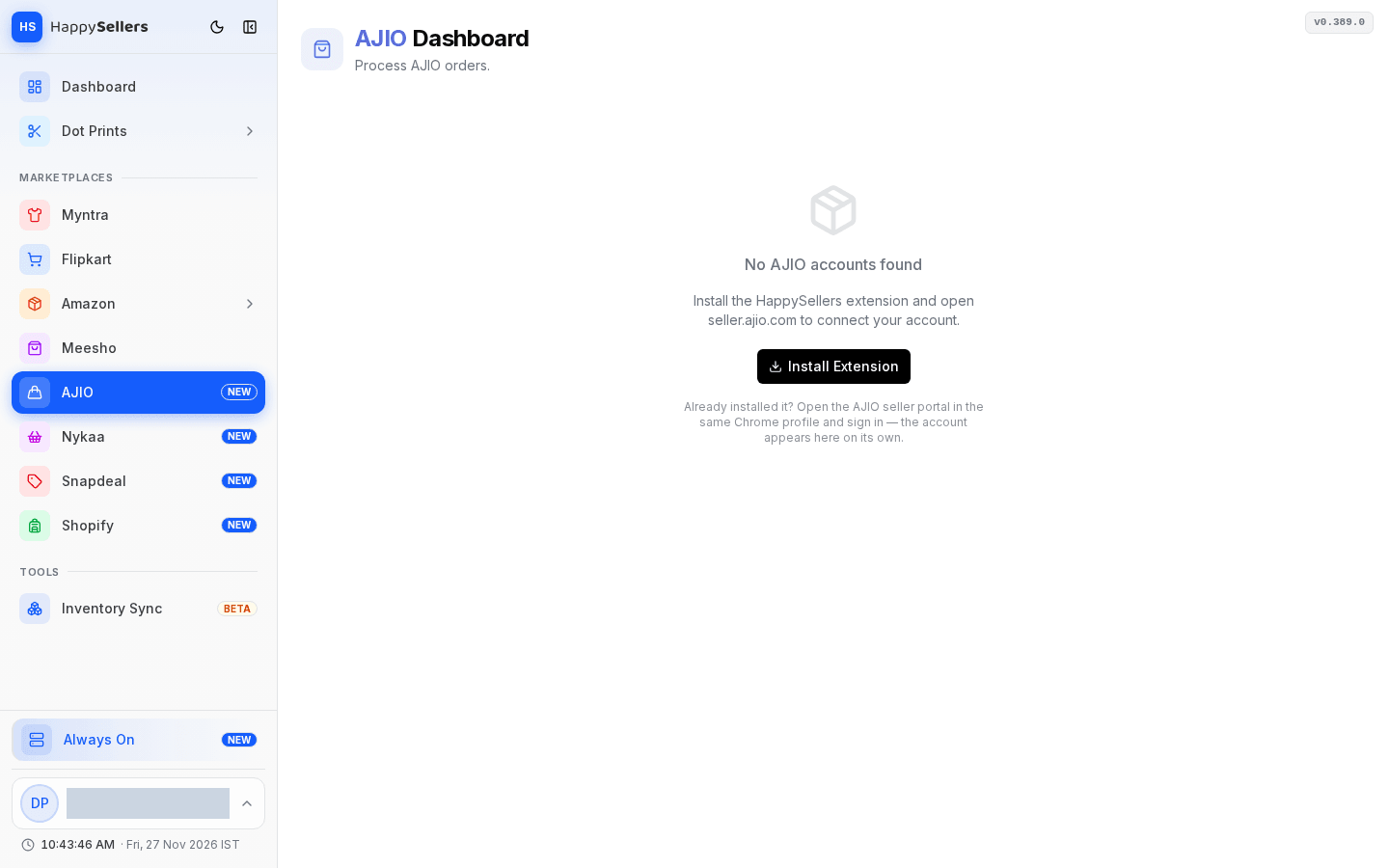
If no AJIO account is linked yet, the page shows No AJIO accounts found and an Install Extension button that walks you through the setup.
Processing your orders
- Open the tab of the AJIO account you want to work on.
- Click Fetch Orders. Your pending orders load into the table, one line per SKU, quantity and order type (single or multi).
- Pick a date with the day buttons on the right, or press the highlighted date again to see every day.
- Tick the lines you want. Ticking a line ticks every order on it. The header tick opens Select all with Pending orders and Processed orders.
- If you want AJIO's manifest made too, tick Create manifest after labels.
- Click Process Orders. A progress bar shows how far the run has got, and each line shows its own progress under the SKU.
- When labels are ready, a message tells you how many shipments were done. The processed orders come back in the table with the status Processed.
- Tick the processed lines and click Create Batch.
- Choose your options in the popup (see below) and click Create Batch again.
- When the batch is ready, click File on its card to get the PDF, and Picklist for the pick sheet.
Options
| Option | Where | What it does |
|---|---|---|
| Create manifest after labels | Next to Process Orders | After every label is saved, asks AJIO to create the handover manifest, one per carrier. Off by default. |
| Batch Type | Create Batch popup | Shipping labels only, Invoices only, or Shipping & invoices both. Your last pick is remembered for the account. |
| Batch Tag (optional) | Create Batch popup | Your own name for the batch, for example the packer's name. Shown on the batch card. |
| Sort Orders By | Create Batch popup | Sort by SKU, or SKU order count (SKUs with the fewest shipments first). Remembered for the account. |
| Move Multi Orders | Create Batch popup | Puts orders with more than one piece at the end (Bottom) or the start (Top) of the batch. Remembered for the account. |
On each batch card you can also:
- Add tag or edit the tag.
- Generate SKU Zip on a finished batch, then Download SKU Zip for one PDF per SKU.
- Recreate the batch with different options, once it has finished or failed.
Good to know
- Processing cannot be undone. It raises the invoice on AJIO. Tick only what you mean to ship.
- Open orders. An AJIO order with no shipment yet shows To confirm. Processing confirms it on AJIO first, then packs it like any other shipment.
- Waiting for AJIO. A line still waiting for AJIO to raise the purchase order shows a clock and cannot be ticked. It can be processed once AJIO has raised it.
- Credits. Each shipment you process counts against your AJIO plan or add-on credits. A shipment is never charged twice, even if you process it again.
- Fetch missing labels. If AJIO accepted some shipments but their labels were not saved, a Fetch missing labels button appears next to Fetch Orders. One click fetches just those labels.
- One run per account. Only one run can go on an AJIO account at a time, from any tab or device. If a run was cut off, the page picks up the remaining orders when the extension is back.
- Extension not connected for this account. No Chrome window is signed in to this AJIO account right now. Open seller.ajio.com as that account, or click Reconnect.
- Older orders are hidden. Unprocessed orders more than 5 days old are not shown. Nothing is deleted.
- The Batches list shows the last 4 days.
Related
- Pricing and credits
- Meesho — the same steps for Meesho orders
- Support
FAQ
Can I process more than one AJIO account?
Yes. Every linked AJIO account gets its own tab, with its own orders, plan and batches.
Why can I not tick some AJIO orders?
They are waiting for AJIO to raise the purchase order. You can process them once AJIO has done so.
Does HappySellers create the AJIO manifest?
Only if you tick Create manifest after labels before you click Process Orders. It is off by default.
Will I be charged twice if I process an order again?
No. A shipment that was already charged is never charged again, including when you fetch its missing label.
Why is Fetch Orders greyed out?
The extension is not connected for this account. Open seller.ajio.com in Chrome signed in as that account, with the HappySellers extension active.