

Settings and Upload Files

Documentation

Settings and Upload Files
TL;DR
- Open both from your profile at the foot of the sidebar.
- Profile: name, photo, gender, phone numbers, email check and password change.
- Company Details: the business name, address and GSTIN printed on your invoices.
- Notifications: choose topics by Email, WhatsApp, SMS and Phone Calls.
- Appearance: Light, Dark or System, plus a colour theme.
- Upload Files: send files to the support team, up to 20 at a time.
Settings is where you look after your own account. Upload Files is how you hand files to the HappySellers support team when they ask for them.
Where to find it
Click your profile at the foot of the sidebar. The menu that opens has Invoices, Refer & Earn, Settings and Upload Files.
Before you start
- Sign in at app.happysellers.in.
- For phone checks, have WhatsApp on the phone whose number you enter.
Change your settings
- Open Settings. It starts on the Profile tab.
- Pick a tab at the top: Profile, Company Details, Notifications or Appearance.
- Make your changes.
- Click the tab's save button: Save Changes on Profile, Save Details on Company Details, Save Preferences on Notifications. Appearance changes apply as soon as you click.
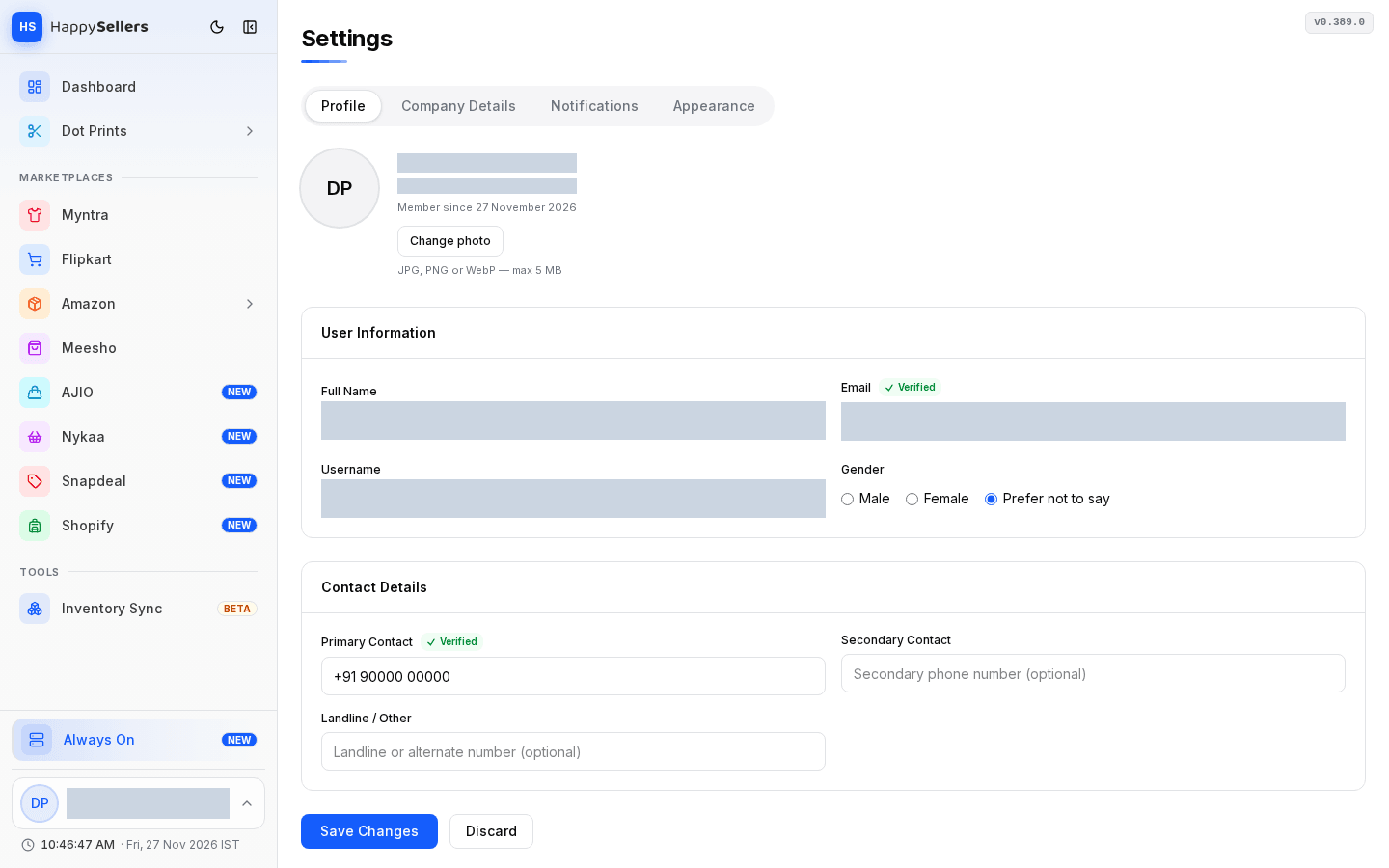
Profile
- Photo: click Change photo to upload one (JPG, PNG or WebP, up to 5 MB), or Remove to take it off.
- User Information: Full Name and Gender can be changed. Email and Username are shown but cannot be edited here.
- Email check: if your email is not verified yet, click Verify Now and enter the OTP sent to it.
- Contact Details: Primary Contact, Secondary Contact and Landline / Other. Click Verify via WhatsApp next to a number. WhatsApp opens with a code ready to send to HappySellers.
- Security → Change Password: click Send OTP to my email, enter the 6-digit OTP, then set a new password of at least 6 characters and click Update Password.
Company Details
These details are "used for billing and invoicing". Fill in GST Number (optional, capital letters), Company Name, Phone Number (your 10-digit WhatsApp number), State, City, Pin Code and the address lines, then click Save Details.
Notifications
A table of topics (Daily Updates, Daily Report, Offers & Discounts, Feature Updates, Tutorials, Newsletter, Feedback, Greetings & Wishes, Achievements & Rewards, New Product Launch, Important Account Related) against four channels: Email, WhatsApp, SMS and Phone Calls. Each topic shows how often it is sent. Tick what you want and click Save Preferences.
Appearance
Choose Light, Dark or System (follows your computer), and a Color Theme: Blue (Default), Zinc, Green, Orange, Rose or Violet.
Upload files for support
- Click your profile at the foot of the sidebar and choose Upload Files.
- Drop files on the box, or click it to browse.
- Check the list. Click the cross next to a file to remove it.
- Click Upload Files. You see a message such as "2 files uploaded successfully."
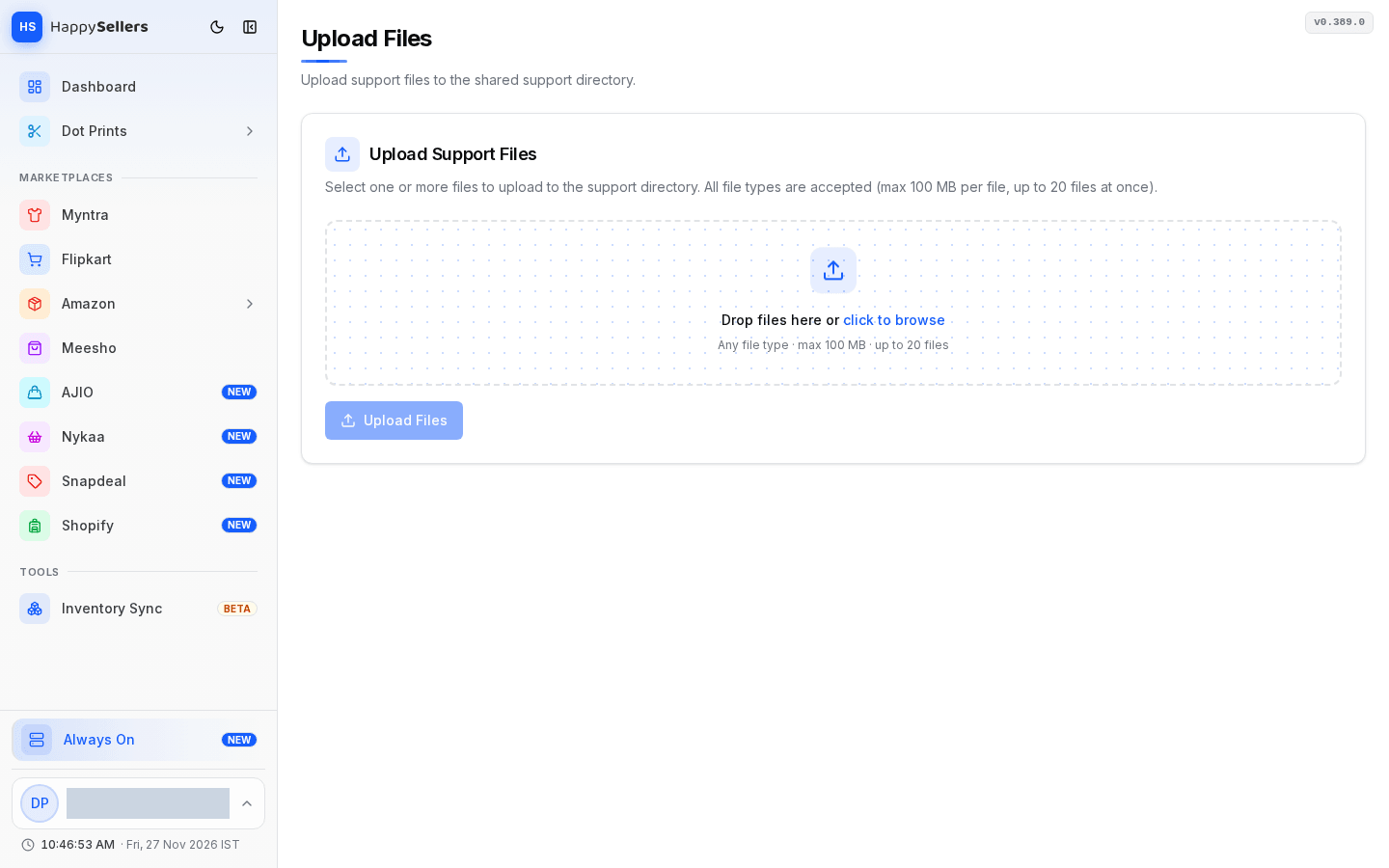
Uploaded files go to the HappySellers support team. You will not see a list of them afterwards, so tell support on WhatsApp or by email what you sent.
Options
| Option | What it does |
|---|---|
| Profile → Change photo | Sets your profile picture. |
| Verify Now / Verify via WhatsApp | Confirms your email or a phone number. |
| Change Password | Sets a new password after an OTP to your email. |
| Company Details | Your billing name, address and GSTIN for invoices. |
| Notifications | Which topics reach you, and on which channel. |
| Light / Dark / System | The dashboard's colour scheme. |
| Color Theme | The accent colour used across the dashboard. |
| Upload Files | Sends files to the support team. |
Good to know
- The GST number must start with the code of the state you pick. If it does not, the form tells you the code it expects.
- A new Company Details save is used for invoices raised after it. Invoices already issued keep the details they had.
- Greyed-out notification rows (New Product Launch and Important Account Related) are always on for your account's security.
- Upload Files takes any file type, up to 100 MB a file and 20 files at a time.
- If an upload fails you see "Upload failed." or "Network error. Please try again." Check your connection and upload again.
Related
FAQ
Where do I add my GST number?
In Settings, on the Company Details tab, in the GST Number field. Click Save Details when you are done.
Can I change the email I sign in with?
Not from Settings. The Email and Username fields are shown on the Profile tab but cannot be edited there.
Why can I not untick some notifications?
New Product Launch and Important Account Related are always on for your account's security, so their boxes are greyed out.
What is Upload Files for?
It sends files to the HappySellers support team, for example a label PDF they asked you for. Up to 20 files, 100 MB each.
How do I switch to dark mode?
Open Settings, go to the Appearance tab and click Dark. Choose System to follow your computer's setting.